AI Console
Just ask
The AI console is the short way through the LayoutEditor. It sits under the drawing, in the same window as the design. You write in ordinary language. The editor answers, and when you ask for a change, it makes the change.
Ask the console how snapping works, which command zooms the view, or where a setting lives. The answer comes back next to the layout you already have open. Searching the manual is no longer the way to find that out.
A script does not require C++ or the macro language. Say what should happen. The assistant writes the script and can run it on this computer. “Delete all shapes smaller than 0.1 µm on layer 1”, “union layer 3 and layer 4 onto layer 11”, or “create labels for the cell instances in the current view” are complete requests. When you want to read or keep that script, the reply can open it in the text editor.
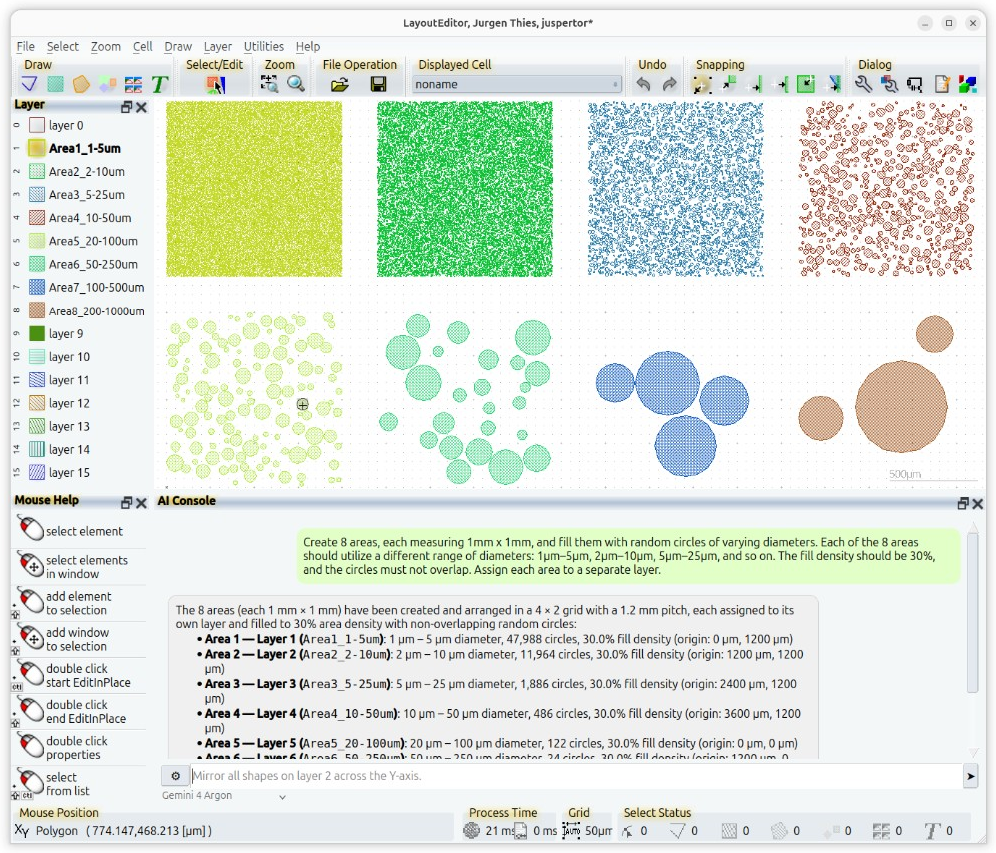
A whole design can start from a prompt. The layout in the picture began as one sentence: eight areas of 1 mm by 1 mm, each filled to 30 percent with random circles, a different diameter range in each area, circles that must not overlap, each area on its own layer. The console created the layers, placed the circles, arranged the areas in a 4 by 2 grid, and listed what it had done. The next sentence can change the result. In the picture, the field already asks to mirror the shapes on layer 2.
Open the console
Open Help/AI Console. The console opens along the bottom of the window, under the drawing. Type in the field and press the arrow, or press Enter. While the field is empty, grey example text rotates through questions you can send as they are.
A line above the input tells you what is happening, for example that the assistant is thinking, reading the manual, or editing the design. While an answer is on its way, a square Stop button appears next to the input. Press it to end that answer. The gear at the left of the input opens the setup on the Misc page, where the models are chosen.
If the console says that AI is disabled, the switch enable cloud features is off. Open the setup dialog from the toolbar or from Utilities, choose Misc, and in the group cloud turn enable cloud features back on. That switch is on in a fresh installation. Turning it off stops every AI path in the program, including the console.
The name at the bottom of the console is the model that will answer. LayoutEditor is already there. Further names appear after you add them under Language Models.
Three ways to answer
LayoutEditor is the assistant that belongs to this program. You type a question. The assistant replies with an explanation or with a C++ script. The script runs on this computer. On the LayoutEditor entry, auto execute AI scripts starts checked, so the script runs as soon as it arrives. Clear that box if you want to read it first. The reply then offers Edit Script and Execute Script. Edit Script opens the text editor. Execute Script runs it. A right-click on a code block in the chat offers the same choice: Open in Text Editor or Save As. This switch applies only to the LayoutEditor assistant. With a full license, the maintenance period has to be current. If it has expired, the console says so and links to the renewal. Details of what this assistant can see are in the next section.
A model you add yourself can answer in the same console, and it can work on the open design when you allow that. OpenAI, Gemini, Anthropic, Grok, DeepSeek, OpenRouter, an address of your own, or a model running on this computer are all set up in one dialog. A full license is required. The key, if the provider asks for one, is yours. The Language Models page walks through the dialog, the AI can access design box, and a model that never leaves the machine.
If you already chat in Cursor, Claude Desktop or Claude Code, that program can start the LayoutEditor and ask it to do the work. That path is separate from the console and is described under Other Programs.
What leaves this computer
The LayoutEditor assistant and a model you configure do not see the same things. The choice is yours, and it is made before the first question.
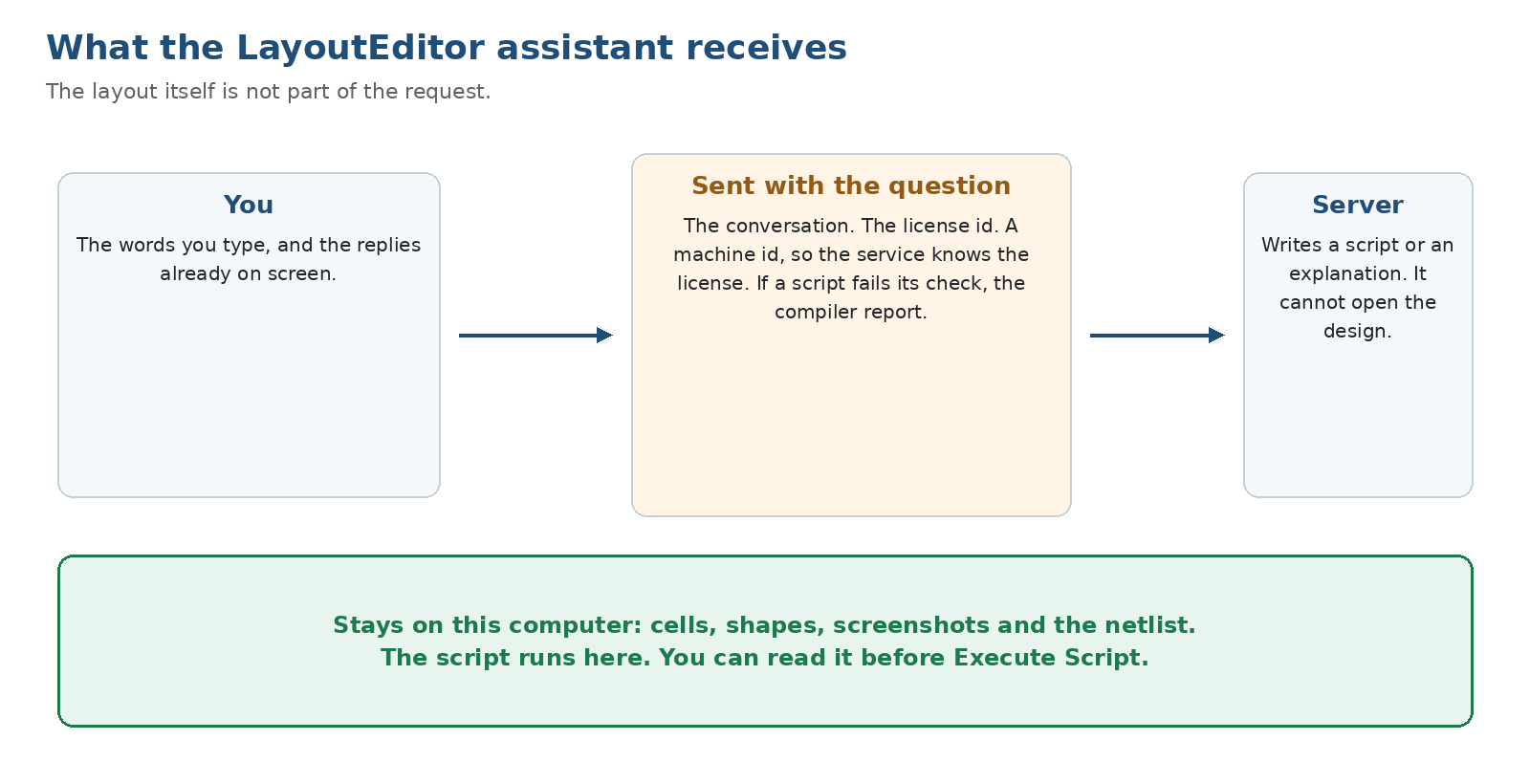
For the LayoutEditor entry, the program sends the conversation, the license id and a machine id to the LayoutEditor server, so the service can tell who is asking and can remember the chat. The conversation is the text you typed, the replies already shown, and the script the assistant wrote. When a script fails its check, the error text is sent back so the assistant can correct it. That text is the compiler report. Cells, shapes, screenshots and the netlist stay on this computer. The box AI can access design is shown for this entry, but it is grey and cannot be turned on. The assistant cannot open the design and look around. It can hand you a script, and that script then runs here. The chat itself is stored on this computer and is sent again with the next question, so the assistant still knows what you asked a moment ago.
For every other model, the box AI can access design is the switch. It is checked when you add the model. Clear it before the first question if the layout must not be described to that model. Checked, the model may read and change cells, shapes, the view, files, screenshots, DRC results, the netlist and schematic sheets. Those answers are sent to the address you entered for that model. Cleared, those tools are withheld. The model can still read the manual, read and change layers and program settings, read and change text documents, and run a script. A script runs on this computer. Whatever the script prints is sent back to the model. If that printed text must not include coordinates or cell names, do not ask the model to inspect the layout while the box is clear. The Language Models page shows where the box sits and how a local address keeps the same traffic on this machine.
The console never opens a port of its own. A model receives only what the path above describes, and only at the address configured for it.
© 2026 juspertor GmbH