Installation
Download
LayoutEditor packages for all supported platforms can be downloaded from the download page. For several platforms, there are installer packages as well as file packages. If you have full admin right on your system, please use the installer package. The zip/tar.gz file packages can be used without administrator privileges, however, it needs a little more system knowledge to run. If a package for your platform does not exist, use the successor platform. If that package doesn't run as expected choose an older release of the LayoutEditor. If the maintenance of your license key has expired, download a package released before the maintenance had expired. A list of all releases is here.
Installation on Windows
The general Windows installer package will run on Windows 10, Windows 11, etc.. It will not run on Windows XP. Until release 20180129 a package for Windows XP was available. The Windows XP package will also run on Vista and Windows 7. All Package are 64 bits, 32 bit package were provided until 2021.
All packages will need Microsoft's VCruntime library for the correct C++ version. If it is not present, the installer package will install the system automatically. If you use the zip package, you need to install it manually. The correct version is included in the zip package under 3rd-Party folder. All included Microsoft's VCruntime packages are needed to run the LayoutEditor.
The installer will add an entry for the LayoutEditor in the start menu. For the zip package, you must start the LayoutEditor with a double click on the LayoutEditor.bat file from the file manager.
Installation on Mac Os X
Intel and Apple Silicon processors are supporded. For installation just copy the layout.app to your Application folder.
It is recommended to activate the Secondary Click. It can be used for panning the design or opening a context menu. The activation is done in the System Preferences of your Mac OS X system. On Mac OS X it may be required to change a default setting under: System Preferences -> Security&Privacy -> General -> Allow_applications_downloaded_from: Anywhere to be able to start the LayoutEditor.
Installation on Linux
layout-version-distribution.platform.{rpm,deb}
Packages for plenty of different Linux distributions are available. It can be installed by clicking on it in the file browser in most distribution.
On all Linux system, the LayoutEditor can be started from the terminal with the layout command.
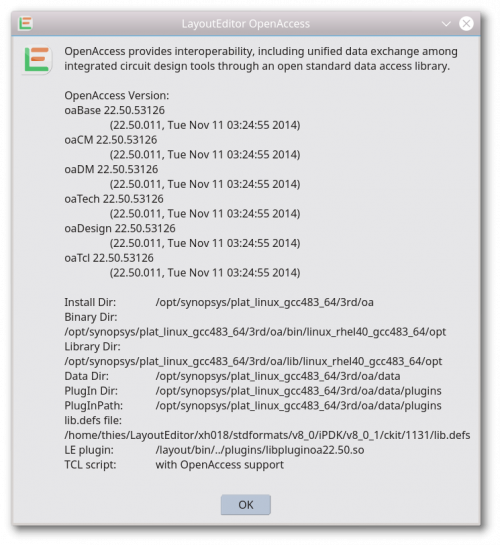
with OpenAccess & iPDK & pyCell
From Release 20260818 on all packages (Windows, Linux and MacOS) support OpenAccess, iPDK and pyCell without any further manual installation. Please use the "About OpenAccess" dialog within the LayoutEditor to checked the used libraries. Of course the no_oa (noOpenAccess) packages do not support it and are intended for customers who do not complier with the US-export regulations.
Installation of Extra Keyboards
Elgato Stream Deck
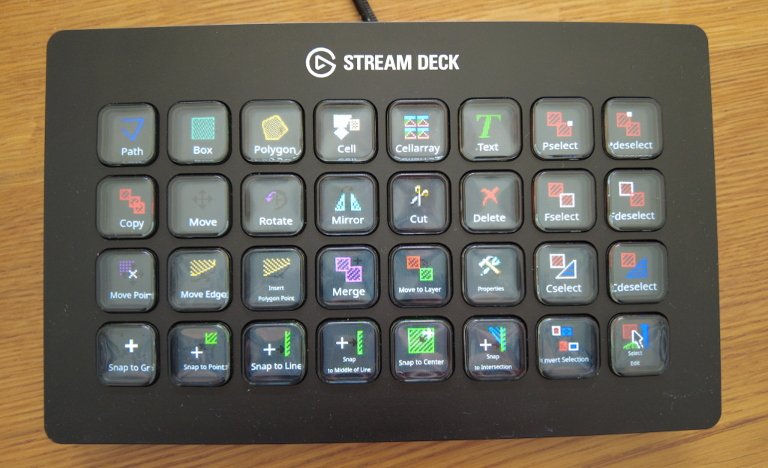
release 20210905 or newer is required to use Elgato Stream Deck
on Windows
Before attaching the keyboard to the USB connector for the first time, please install the driver software for Windows from Elgato. The software will start when connecting the keyboard. Quit this software within the Windows statusbar with a right mouse click on quit. You can then start the LayoutEditor and it will connect to the stream deck. All setup is done within the LayoutEditor. Elgato setup software is not needed. Don't run Elgato's setup software parallel to the LayoutEditor. Both setups will interfere.
on Mac
Please install the driver software from Elgato for Mac. Close the elgato software within the Mac menu bar. Start the LayoutEditor. All the setup is done within the LayoutEditor. Don't run Elgato's setup software parallel to the LayoutEditor. Both setups will interfere.
on Linux
Please install the udev library for your linux system. This library is often already installed by default. You must enable stream deck access for the user running the LayoutEditor. This is done with a udev rule file:
Create a file /etc/udev/rules.d/10-streamdeck.rules
KERNEL=="hidraw*", ATTRS{idVendor}=="0fd9", TAG+="uaccess"
EOF
Reread the udev rules with a sudo udevadm control --reload-rules command and reattach the stream deck afterwards. The keyboard will be detected in LayoutEditor without any further setup.
To validate the setup of udev you can use a ls -l /dev/hidraw* command before and after connecting the extra keyboard. One line should be added when connecting the keyboard. The access right must be '
crw-rw----+ 1 root users
© 2026 juspertor GmbH